Crown Connect October 2026 Release

Crown Connect

October 2026 Release: Version 20261006.1

Before you get started: refresh Crown Connect

To make sure you’re on the latest version, sign out of Crown Connect, close your browser completely (every window, not just the tab), then open it again and sign back in.

Membership has its privileges redesign

First, thank you. Your feedback and enhancement requests played a big part in shaping this release. We listened, and many of the improvements you asked for are now built directly into Crown, giving you more flexibility to manage memberships the way that works best for your practice.

Our biggest membership update yet is now live, powered by a membership payment engine we rebuilt from the ground up, so payments run faster and more reliably. We’ve rethought the entire experience from enrollment through renewal, including a new enrollment form, a searchable and exportable membership list, scheduled plan changes, a clearer membership agreement, and improved handling of declined and past-due payments.

And memberships aren’t the only thing getting attention. This release also includes improvements to the patient portal, payment plans, receipts, and more.

If you use Crown Connect for a non-dental business, you’ll see “customer” wherever these release notes refer to a “patient.”

New to the redesign? Start with Memberships in Crown Connect: overview and what’s new.

Start here: review your Membership Settings

Open Settings from the menu at the top right, then select Memberships. This release adds new options for declined payments, multi-patient discounts and payment splits. Suspend After Declined Payments is turned off for every practice to start, so past-due memberships stay active and keep building a balance until you decide otherwise.

  • Suspend After Declined Payments (new)—choose whether a membership is suspended after a declined payment. When it’s off, the membership stays active and past due, keeps its original term end date, and builds a balance until payment is collected.
  • Declined Payment Grace Period (new)—set how many days (0 to 30) a membership can stay past due before it’s suspended. Discount plan benefits stay active in your practice-management system through the grace period.
  • Retry the payment every day of the grace period (new)—try the card again automatically each day while the membership is past due.
  • Collect Past-Due Payments When Restarting (new)—when you restart a suspended membership, collect the payments missed before suspension along with the first new payment, or write them off.
  • Multi-Patient Discount—take a percentage off recurring payments for memberships that cover more than one patient. When you change the rate, choose New memberships only or New and existing memberships.
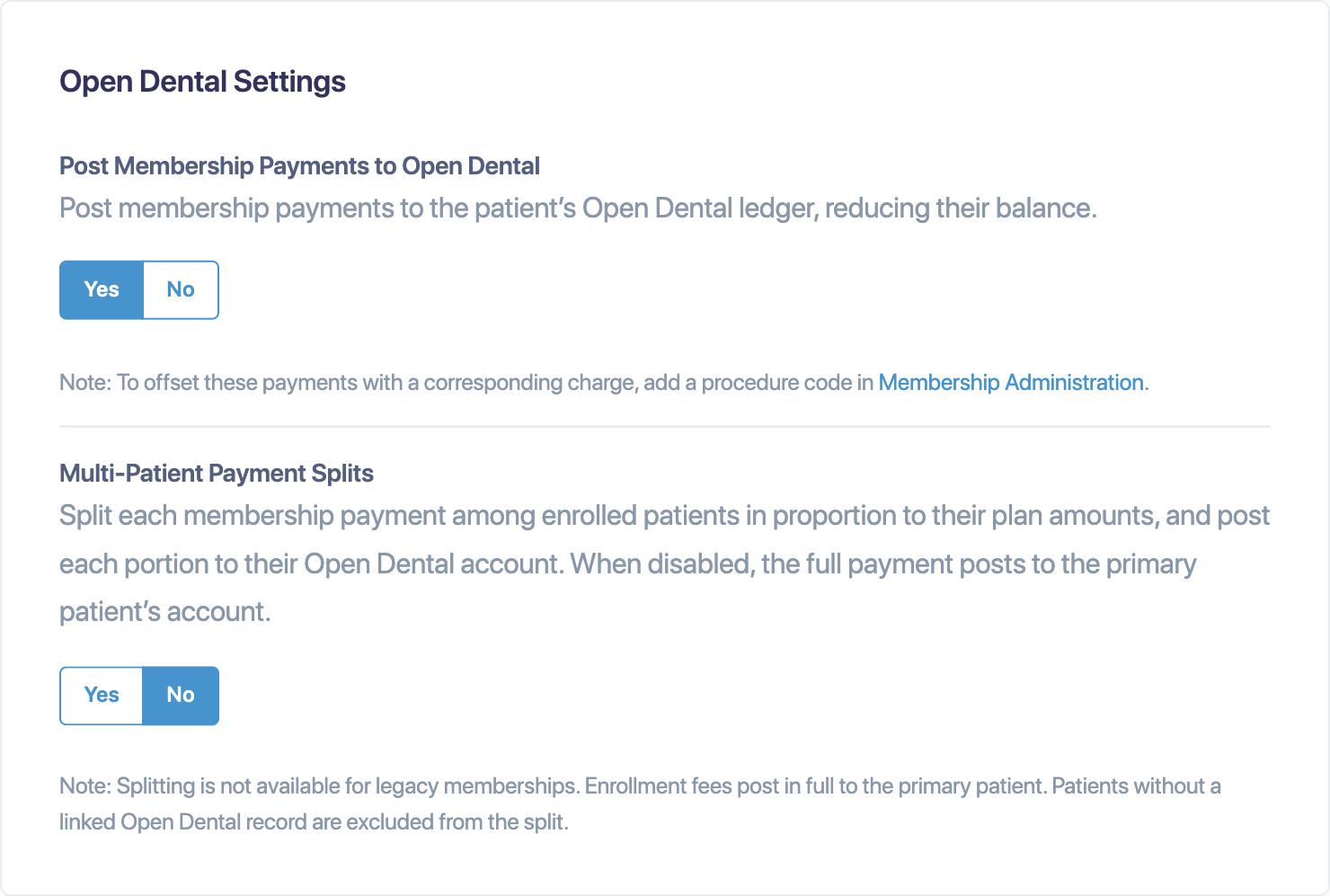
  • Multi-Patient Payment Splits (new, for practices connected to a practice-management system)—split each payment among the family members on a membership, in proportion to their plan amounts, and post each share to that patient’s account.
  • Post Membership Payments—moved here from Open Dental Settings.
  • Payment Reminders and Auto-Renew Membership Reminders—clearer wording for how many days before a payment or renewal patients get an email reminder.
  • Expiring Membership Alerts (new)—email your office before a membership that doesn’t auto-renew reaches its end date, so you can renew it in time.
  • Membership Agreement (Agreement tab)—a new standard agreement. Edit yours, or reset to the default to use the new standard language.

Membership Settings showing Suspend After Declined Payments, the grace period, daily retry and Collect Past-Due Payments When Restarting
Open Dental settings in Membership Settings, showing Post Membership Payments and Multi-Patient Payment Splits

Learn more: Set up your Membership Settings · Customize your membership agreement

Change a plan once, choose who follows it

Open Membership Administration from the menu at the top right, then select Edit Membership on a plan. In the Plan Change window you can update the name, monthly and yearly amounts, description, benefits, and the Open Dental discount plan and offset procedure code, all as one change. Each price shows its current amount below it, and the Change Summary lists everything you’ve changed.

  • Apply it now or schedule it. Today’s date applies the change immediately. A future Effective Date schedules it, and the plan card shows when it’s coming.
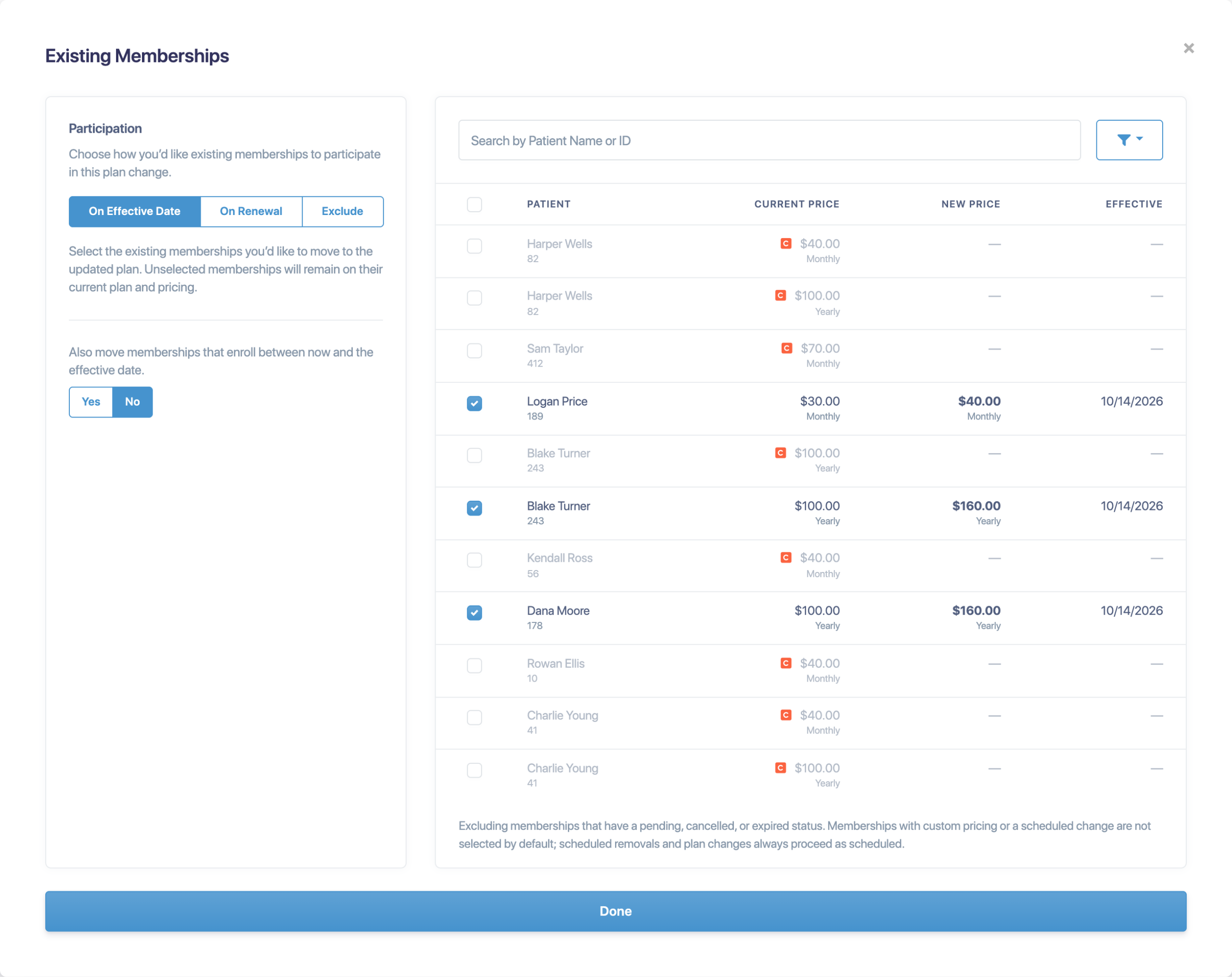
  • Choose how existing members take part. On Effective Date moves selected members to the new price on that date. On Renewal moves each member at their own renewal. Exclude leaves existing members as they are, so only new enrollments use the updated plan.
  • Pick exactly who’s included. Filter by status, billing and pricing, and see each member’s current price, new price and effective date. Members with custom pricing are marked with a C and, like members who already have a scheduled change, start unchecked so you don’t overwrite them by accident.
  • Heads up: a standard-priced member you leave unchecked is locked at their current price and won’t follow future price changes to the plan. If you save without checking anyone, Crown Connect asks you to confirm first.
  • Change your mind? Reopen a scheduled change to adjust it, or select Cancel Plan Change to remove it from every membership on the plan.
  • Yearly-only plans and per-plan offset codes. Turn off monthly billing for a plan to offer it yearly only. The Open Dental offset procedure code now lives on each plan.

The Plan Change window with updated prices, the Effective Date, Existing Memberships and the Change Summary
Choosing how existing members take part in a plan change, with current and new prices for each member

Learn more: Change a plan’s price for existing members · Create and edit membership plans
A better-organized enrollment form

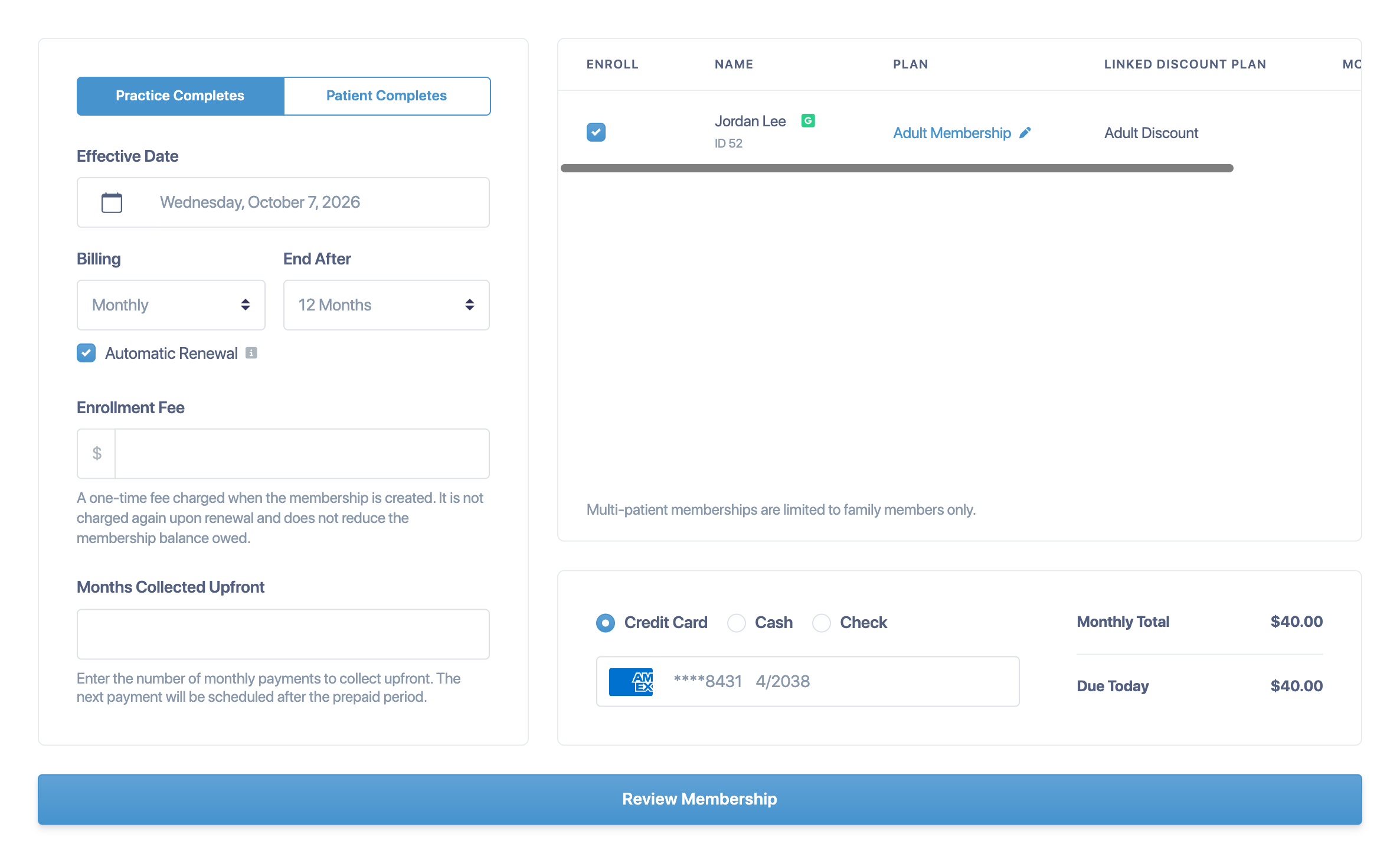
  • New enrollment form. Choose who completes it (Practice Completes or Patient Completes). Then set Billing, Effective Date, End After (1 to 12 months), Enrollment Fee and Months Collected Upfront. Terms longer than a month can renew automatically.
  • Pay your way. Patients can pay by credit card, cash or check. Check numbers are saved with the enrollment.
  • Future start dates. When a membership starts later, only the enrollment fee is charged today. With Patient Completes, if the patient finishes enrolling after the effective date, the effective date moves to the day they complete it.
  • Print & Sign. Print the agreement for the patient to sign in your office, then select Start Membership.
  • No accidental duplicates. Plans a patient already has, or is scheduled to move to, are greyed out when you pick a plan.
  • Family-only multi-patient memberships (Open Dental). A membership that covers several patients can now include members of one family only, so each payment can be split correctly across the family’s accounts.

The new enrollment form with Billing, End After, Enrollment Fee, Months Collected Upfront and payment options

Learn more: Enroll a patient in a membership

Managing memberships

  • Status tiles and one search box. See counts by status at a glance. Search by Plan ID, patient or PMS ID, name or email, and filter by billing, payment method or renewal. “Membership ID” is now called Plan ID.
  • Export to PDF or CSV. Download your full membership roster, including past-due amounts and upcoming changes.
  • Every action in one menu. On a membership, Manage Plan gathers everything: make a payment, pause or resume, change the payment date or card, switch to cash or automate with a card, set renewal options, view the agreement, cancel or restart.
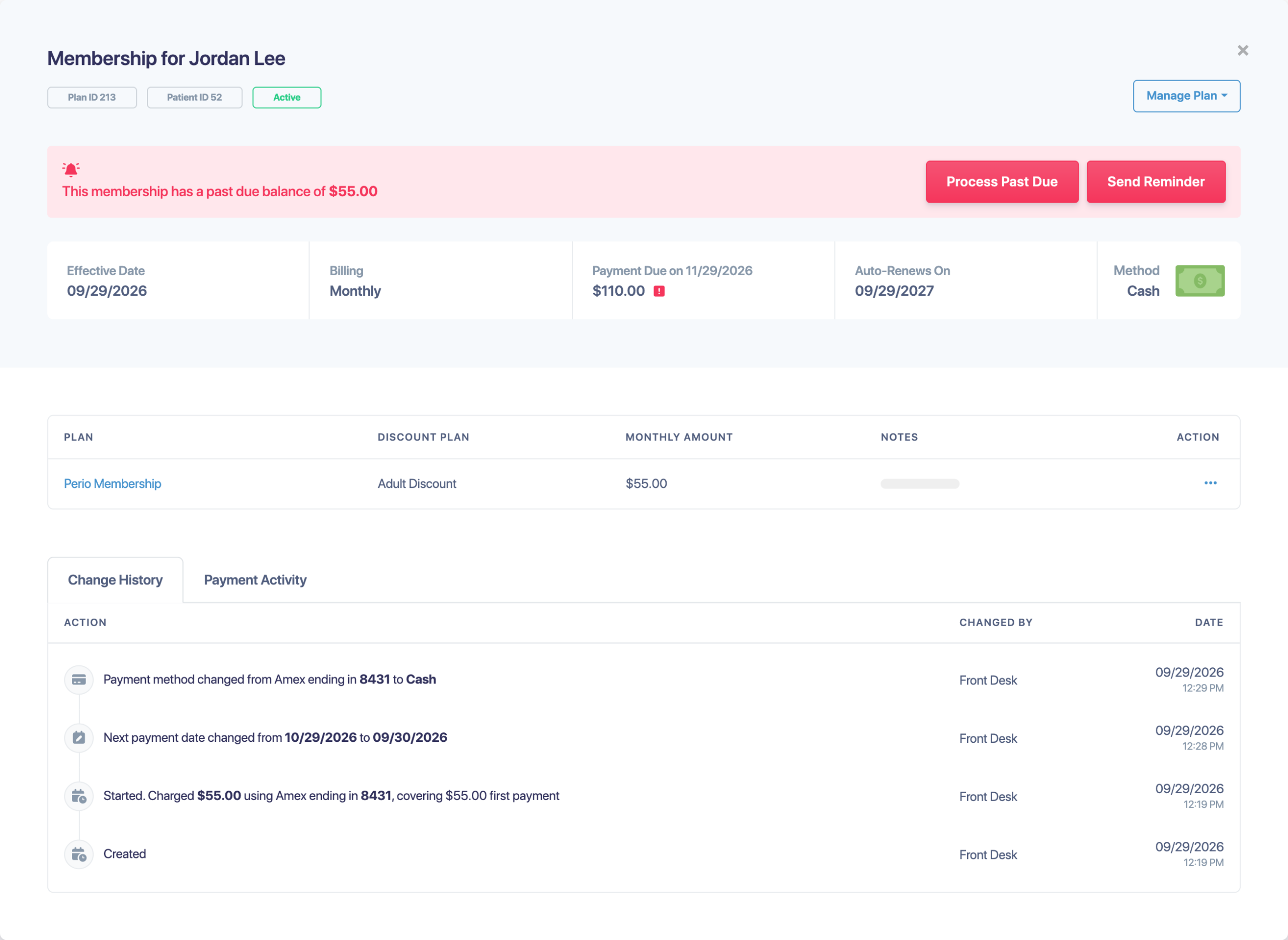
  • Past due at a glance. A past-due membership shows the balance owed with Process Past Due and Send Reminder right next to it. A paused membership shows when it was paused, with a Resume button.
  • Changes for one patient. Select Update Plan on a membership’s plan to move a single patient to a different plan or change their price, starting with the next billing date or at the term date. The upcoming change is shown right on the plan, where you can edit or cancel it before it happens.
  • Upcoming changes at a glance. An icon beside a patient’s name marks a scheduled change, and Next Payment shows any past-due amount it includes.
  • Change History. A new tab lists each change in a plain sentence, with who made it and when.

The membership list with status tiles, search, filters and the Export menu
A membership with the Manage Plan menu open
The Change History tab listing each membership change in a plain sentence

Learn more: Find, filter and export memberships · Manage a patient’s membership

Payments, reminders and restarting

  • Restart a membership your way. Restart a canceled or suspended membership with your choice of renewal and card. If the plan changed while it was inactive, choose whether to keep the previous plan’s price and benefits or move to the current plan.
  • Take a payment any way. Make a Payment accepts the card on file, cash, check or an adjustment. An adjustment records a payment collected outside the membership: no card is charged, and it posts to Open Dental. Cash and check members can also make a one-time card payment without changing how the membership bills.
  • Easy corrections. Refund a cash or check payment, or void an adjustment, from Payment Activity.
  • Better reminders. Yearly members now get the “will not auto-renew” reminder.

Restarting a membership with pricing, renewal and payment choices

Learn more: Past-due memberships, payments and restarting

Agreements and the patient portal

  • A new standard membership agreement. It covers surcharges, cash and check billing, family plans, grace periods and suspension. Late fees are no longer part of it.
  • Agreement by email. Patients receive a short email with their membership agreement attached as a PDF. Staff can preview it under View Agreement, then email or print it.
  • Itemized sign-up. Patients see exactly what they pay today: the enrollment fee, any months paid upfront and the total due at signing. A signature is required before payment.
  • Plan details. Patients can open a plan’s name to see what it includes.
  • Clearer confirmations. A redesigned confirmation screen appears after payment.
  • Clearer declines. If a card is declined, the message appears next to the button the patient pressed.
  • Surcharges shown up front. On past-due membership and payment plan pages, any card surcharge is shown before the patient pays.
  • Card updates from reminders. Patients can update their card from a reminder link again.

Learn more: Customize your membership agreement · Enroll a patient in a membership

Open Dental and your practice-management system

  • Adjustments in Open Dental. Membership adjustments post to Open Dental as adjustments, using the types you choose under Settings > Open Dental > Membership Adjustments.
  • Commlogs. Membership changes add a commlog to the patient’s chart in Open Dental.
  • Discount plan dates stay in sync. Link a membership plan to an Open Dental discount plan, and Crown Connect keeps each patient’s discount plan dates current as their membership changes. To link one, edit the plan in Membership Administration and choose a Discount Plan under Open Dental Settings. The discount plan starts on the membership’s start date, and its end date follows the membership’s status. For example, it ends on the last day of the grace period for a past-due membership, or on the day a membership is suspended, paused or canceled.

The Discount Plan and Procedure Code fields under Open Dental Settings on a membership plan

Learn more: Memberships and Open Dental

Good to know

Most settings carried over unchanged. Please review these changes, especially the first two.

  1. Review your declined-payment settings. Suspension is turned off for every practice with this release, so past-due memberships stay active and build a balance. To suspend memberships after a declined payment, turn on Suspend After Declined Payments in Membership Settings and set a grace period.
  2. Ongoing memberships keep working. New “Ongoing” memberships are no longer offered. Existing ones keep billing month to month and show Currently Ongoing. To convert one, open Renewal Options, choose Auto-Renew and set Renew Every (2 to 12 months).
  3. Multi-patient memberships are family-only (Open Dental). Existing multi-patient memberships that aren’t a single family keep working, but payment splits don’t apply to them: each payment posts in full to the membership’s primary patient.
  4. New charge time. Membership payments now run at 8:00 AM your local time. A declined payment shows as past due at 7:00 PM that day.
  5. Your membership agreement. If you used the standard membership agreement, you’ve been moved to the new version automatically. If you customized yours, your text was kept, and you’ll see a note that it differs from the new standard.
  6. Offset procedure code. It now lives on each plan. Your current code was copied to every plan.
  7. New names. “Down Payment” is now Enrollment Fee, and “Membership ID” is now Plan ID. The custom amount and number-of-payments options have been removed from membership payments.
  8. Enrollment email. Patients now receive their agreement as a PDF attachment instead of the previous details email.
  9. Exports. “Patient ID” now means the patient’s ID in your practice-management system. Totals include scheduled changes, so they may differ from older reports.
  10. Payment plan surcharges. Card plans signed before you turned on surcharging are not surcharged on past-due pages.

Have questions? See the Memberships FAQ.

Payment plans, payments and receipts

  • Edit a payment plan’s schedule. Change the date or amount of an upcoming payment on a Crown-managed plan.
  • Change History for payment plans. Each change is listed in a plain sentence.
  • Easy corrections. Refund a cash or check payment. On Crown-managed plans, you can also void an adjustment.
  • Canceled plans. A payment link for a canceled plan now says “Plan Canceled.”
  • A new terminal receipt option. Under Settings > Receipts, choose On Terminal, Auto Email or Both. With Both, the terminal offers a receipt and Crown Connect also emails one. To keep patients from getting two emailed receipts, we recommend turning off the email receipt option on the terminal in your GoDaddy merchant portal. Your current setting stays the same.
  • Transactions list. Adjustments open an Adjustment Details view, and you can filter by Adjustment.
  • Processed By. Automatic charges are no longer labeled as made by the patient.

Fixes

  • Fixed an issue where, in some cases, text-message payment links didn’t open correctly.
  • Fixed an issue where, in some cases, the Transactions list didn’t load past the first page.
  • Fixed an issue where, in some cases, enrollment invites were sent to a patient’s previous email address or mobile number instead of their current one.
  • Fixed an issue where, in some cases, the link on the upcoming payment reminder card didn’t work.
  • Fixed an issue where, in some cases, treatment plan items didn’t load.
  • Membership offset procedure codes that contain spaces are now accepted.

Talk to Us!

We’d love your feedback. Reach us anytime through the in-app chat or at [email protected].

Oops! We could not locate your form.

Surcharge FAQ

Surcharge Compliance

If you are considering introducing a credit card surcharge for your patients, it is important to understand that there are specific rules and regulations that must be followed when enrolling in and operating under a surcharge plan.

This article provides a general overview of common surcharging requirements. This content is provided for informational purposes only and does not constitute legal advice. It is the responsibility of each merchant to review, understand, and comply with all applicable laws, card-network rules, and regulatory requirements, including notification timeframes, signage requirements, surcharge percentage limits, and jurisdictions where surcharging is prohibited.

If you are unsure about the laws or regulations applicable to your practice, you should consult with qualified legal counsel. Moolah assumes no liability for a merchant’s compliance or non-compliance with credit card surcharging rules or regulations.

Transparent Communication
Card networks, including Visa, Mastercard, Discover, and American Express, require merchants to clearly and transparently disclose when a credit card surcharge is applied.

Practices must clearly notify patients of a credit card surcharge through appropriate signage placed at the practice entrance, at the point of sale or terminal, and anywhere payments are accepted. If payments are accepted online, surcharge disclosures must also be clearly visible on the practice’s website. All disclosures must inform patients that the surcharge applies only to credit card transactions.

Surcharge Limits
Credit card surcharges must comply with both card-network rules and applicable law. The surcharge amount may not exceed the merchant’s actual cost of accepting credit cards and may not exceed 3% of the total transaction amount.

Card-network rules cap credit card surcharges at 3%, meaning that if a merchant’s processing costs exceed this amount, the excess portion cannot be passed on to the patient.


Warning
The following is a general overview of credit card surcharging rules in the United States. Merchants are responsible for understanding and complying with all applicable requirements.

Network and State Restrictions
The major credit card networks, such as Visa and Mastercard, impose specific requirements related to surcharge limits, advance notification, and disclosure.

In addition, several U.S. states and territories regulate or prohibit credit card surcharging. At the time of writing, credit card surcharging is prohibited in Connecticut, Maine, Massachusetts, and Puerto Rico. Other states, including Colorado, Minnesota, Mississippi, New Jersey, and New York, impose restrictions on surcharge amounts or require specific disclosures.

If your practice operates in a state that restricts or prohibits credit card surcharging, you must fully understand and comply with those requirements before implementing a surcharge.

Debit card transactions may never be surcharged, even if the debit card is processed as a credit transaction.

Applicability
Credit card surcharges may be applied only to credit card transactions. Other payment types, including debit cards and alternative payment methods, are not eligible for surcharging.

Regulatory Compliance
Merchants are responsible for maintaining ongoing compliance with all applicable card-network and legal requirements. This includes meeting advance notification obligations, using compliant signage and disclosures, adhering to surcharge percentage limits, and respecting jurisdiction-specific restrictions.

By following these guidelines, dental practices can implement credit card surcharging in a way that aligns with card-network rules and promotes transparency with patients. Clear and upfront communication helps maintain patient trust and supports a positive payment experience.